You can define a schedule for running orchestrated integrations, such as the frequency at which to run the integration, whether to run the schedule based on an iCal expression, whether the schedule run should never expires, whether the schedule should have a fixed expiration date, and so on.
Find the scheduled integration.
These integrations are identified by a
 schedule trigger icon in the far left column. There are several ways in
which to create a schedule on an integration.
schedule trigger icon in the far left column. There are several ways in
which to create a schedule on an integration.
If you want to first design and activate the integration and then create the schedule:
Click the
 icon. The Activate Integration dialog box is displayed.
Click Activate and Schedule.
If you want to first create a schedule for an integration that you design and activate later:
Select Add Schedule from the
 menu.
menu. Note:
For integrations with no defined schedules, the menu shows Add Schedule. For integrations that have a defined schedule, the menu switches to Schedule.
The page for defining the schedule execution details is displayed.
Note:
Assume you create a schedule and generate several integration runs, then deactivate and delete the integration. If you then create and activate a new integration with the same name as the deleted integration, and go to the Track Instances page, the past runs of the deleted integration are displayed. This is by design.
If you want to schedule integration runs with an iCal expression, click iCal.
Note:
There is a one minute limitation on how frequently you can run scheduled integrations with an iCal expression. Anything below this limit is not supported.
You cannot use lookups in iCal expressions.
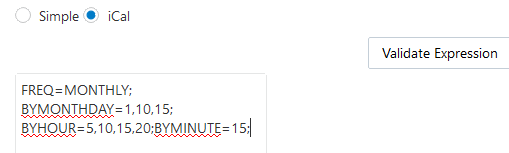
Enter an iCal expression, and click Validate Expression. For example:
The following expression indicates that this integration runs each month on the 1st, 10th, and 15th days of the month at 5:15 AM, 10:15 AM, 3:15 PM, and 8:15 PM.
You can also define multiple schedule frequencies. The following schedule runs every day between the hours of 5:30 PM – 7:30 PM, and during these hours it executes every 10 minutes. This configuration requires three schedules separated by the
&sign:
FREQ=DAILY;BYHOUR=17;BYMINUTE=30,40,50;BYSECOND=0;
&FREQ=DAILY;BYHOUR=18;BYMINUTE=0,10,20,30,40,50;BYSECOND=0;
&FREQ=DAILY;BYHOUR=19;BYMINUTE=0,10,20,30;BYSECOND=0;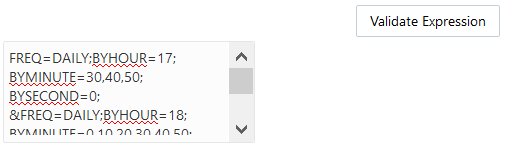
Description of the illustration ical_expression2.png
The following schedule runs daily at 8 AM and also monthly at 12 PM on day 1 and day 2.
FREQ=DAILY;BYHOUR=8;&FREQ=MONTHLY;BYMONTHDAY=1,2;BYHOUR=12;
If validation is successful, the following message is displayed at the top:
iCal expression is
                                valid.
In the This schedule is effective section, click the link to the right of From.
A menu is displayed for defining the start date of the schedule.
If you want to start the integration run when the schedule is activated, click When schedule starts.
If you want to explicitly set an integration run start date:
Select Modify start date.
Click the Calendar icon to select the month, year, and day and the hour, minute, and second at which to start the integration run.
Click OK.
In the Until section, click the link to the right.
A menu is displayed for defining the expiration date.
If you want the schedule run to never expire, select Never (repeat indefinitely).
If you want the integration run to have a fixed expiration date:
Select Choose expiry date.
Click the Calendar icon to select the month, year, and day and the hour, minute, and second at which to end the integration run.
Click OK.
From the Time zone list, select a value. By default, this field shows the value you selected on the Preferences page.
Click Save, then click Update & Save when prompted.
If successful, a message is displayed in the upper corner.
Schedule Run name saved successfullyIf there are any errors, a validation message is displayed in the upper right corner that describes how to resolve the errors.
Click  .
.
The Schedule and Future Runs page is displayed.
Details
about the integration run schedule are displayed. You can click the  icon to update the schedule definition.
There are two sections on the Future Runs page:
Schedule section: This section is collapsed by default. Clicking the top bar (showing schedule name and buttons) expands the section and shows the schedule.
Future Runs table: This remains empty until the schedule is started. Once you start the schedule, you can see data.
If you have already activated the integration, select an option to run the integration:
Select Submit Now from the
 menu.
menu.
or
Select Start Schedule on the Schedule and Future Runs page to activate the integration schedule.
If you are a user with the ServiceAdministrator role, you can change the user with which to submit the schedule.
Click Start when prompted. Otherwise, click Cancel.
Note:
If you place a file in an input directory and run an integration for the first time, the file is copied to the output directory. If you then run the integration a second time, the same file is not copied again to the output directory, even if you deleted the file from the output directory before rerunning the integration. This is by design. Second integration runs do not copy the same file. However, if a new file is placed in the input folder or the previously-copied file is updated with a newer version in the input directory, both are copied to the output directory.
If you create a new schedule to repeat every minute and launch the calendar to specify a start time, it shows the current time (for example, 12:41:16). If you update the start time to several minutes later (for example, 12:43:55), save, and start the scheduled integration run, the integration starts running at 12:43:16 instead of 12:43:55. The scheduler does not care about the seconds entered and runs the schedule every minute.
If you have not yet activated the integration, return to the Integrations page
and click .
Run the scheduled integration as described in the previous steps.

